Complete guide to connecting Amazon Prime for Twitch Prime Gaming perks: free monthly channel sub, emotes, badges, ad-free viewing. Includes all steps, screenshots, troubleshooting, and interactive elements.
Maximize Your Amazon Prime with Twitch Perks
As an Amazon Prime member, you unlock incredible value on Twitch through Prime Gaming. This includes one free monthly subscription to any participating channel, letting you support streamers, access exclusive emotes and badges, enjoy ad-free viewing on that channel, and more, all without extra cost beyond your Prime membership.
Linking is fast, and claiming your sub takes seconds each month. Use the same browser for both accounts to prevent session errors.
Linking Your Amazon Prime to Twitch Step by Step
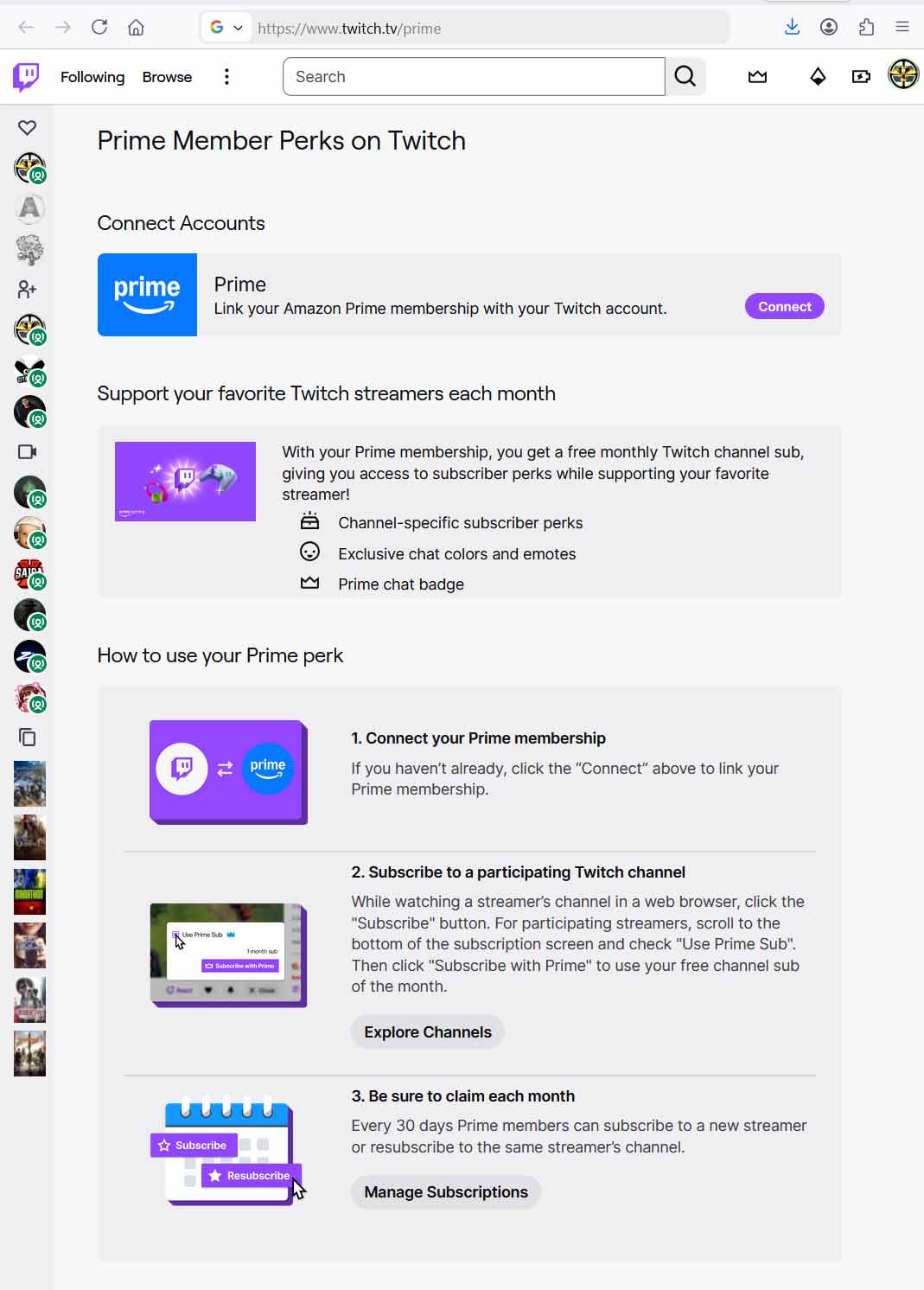
Head to the official page and connect your accounts for seamless perks.
- Step 1: Visit twitch.tv/prime
Go to twitch.tv/prime. Click the Connect button to start.
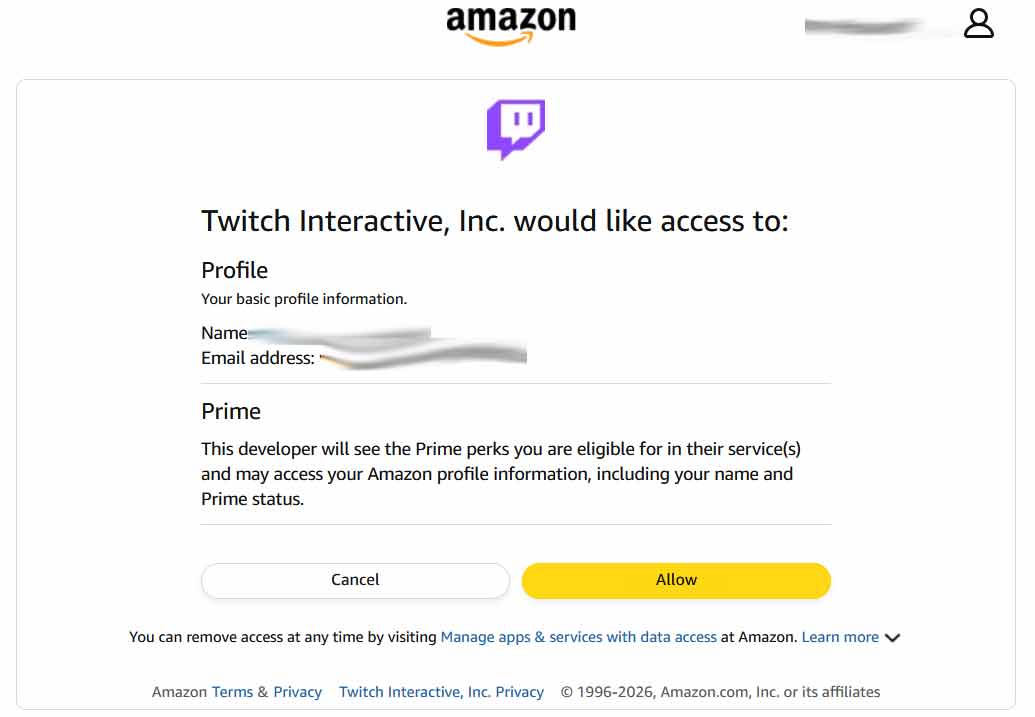
- Step 2: Authorize on Amazon
You redirect to Amazon. Review permissions for profile and Prime status, then click Allow.
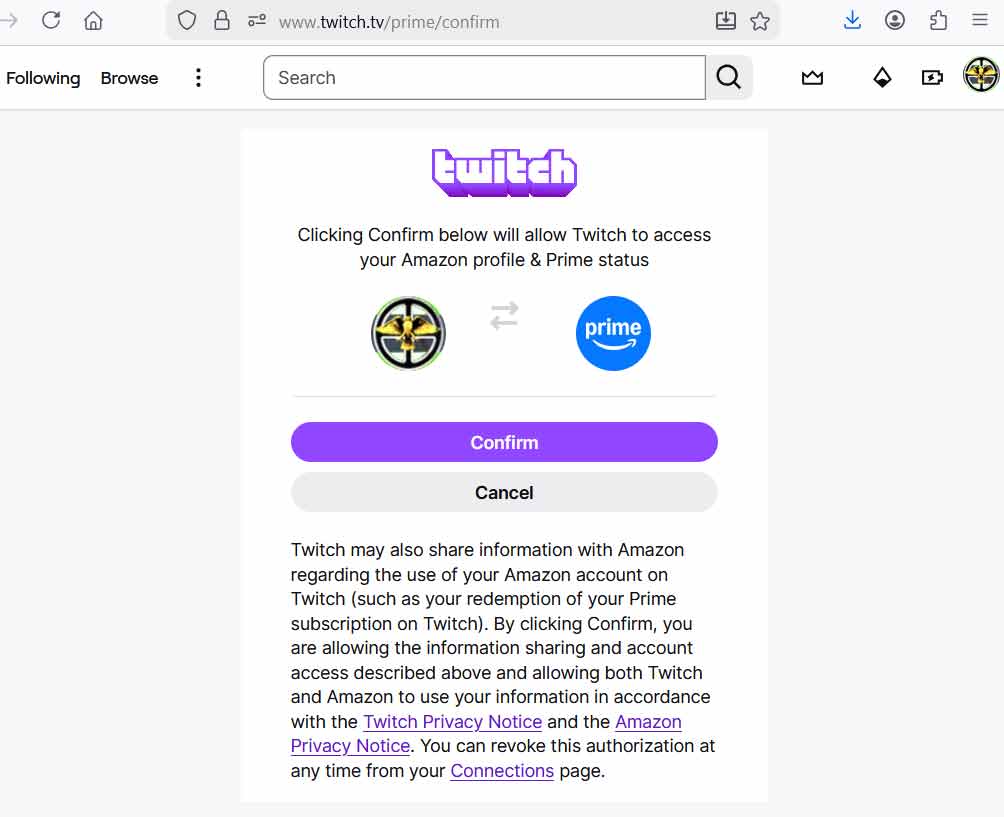
- Step 3: Confirm on Twitch
Back on Twitch, click Confirm. Success displays a connected message.
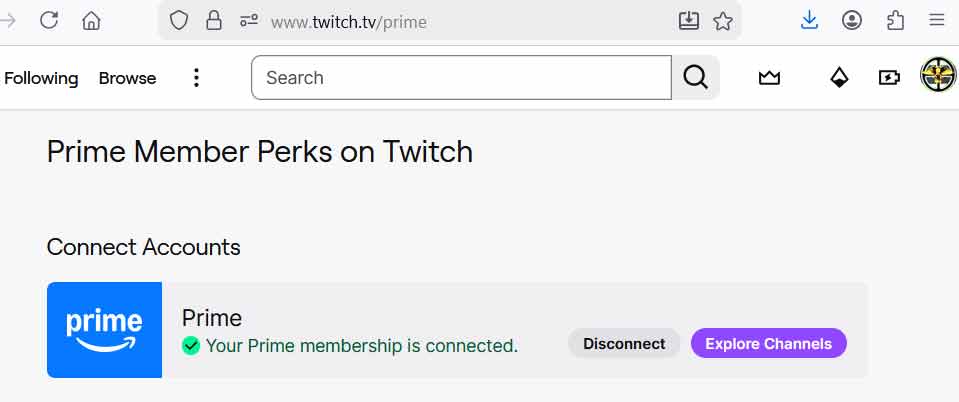
If successful it will then say – Your Prime membership is connected.
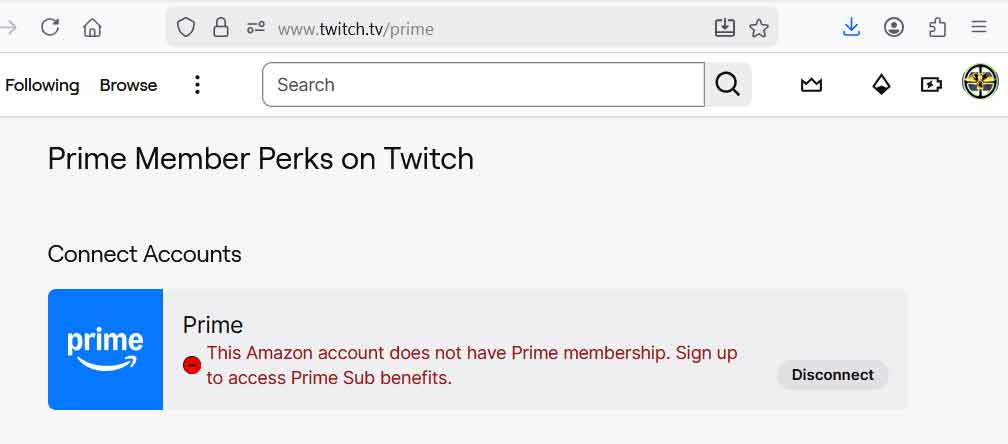
If you see no Prime error, verify your Amazon subscription status.
Claim Your Free Monthly Prime Sub
With accounts linked, claim your sub every 30 days on any eligible channel (most affiliates and partners qualify).
- Visit the channel (try your own at gamingwithdaopa).
- Click the purple Subscribe button.
- Scroll in popup, check Use Prime Sub (free 1-month option).
- Click Subscribe with Prime.
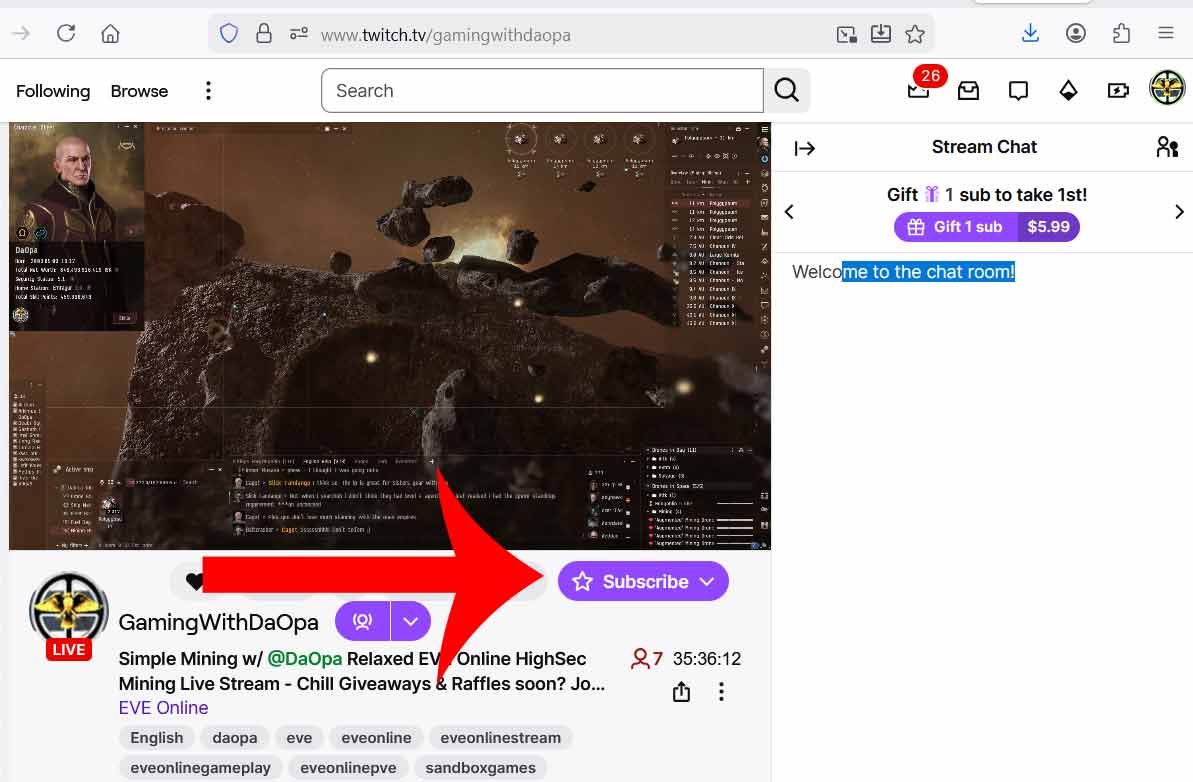
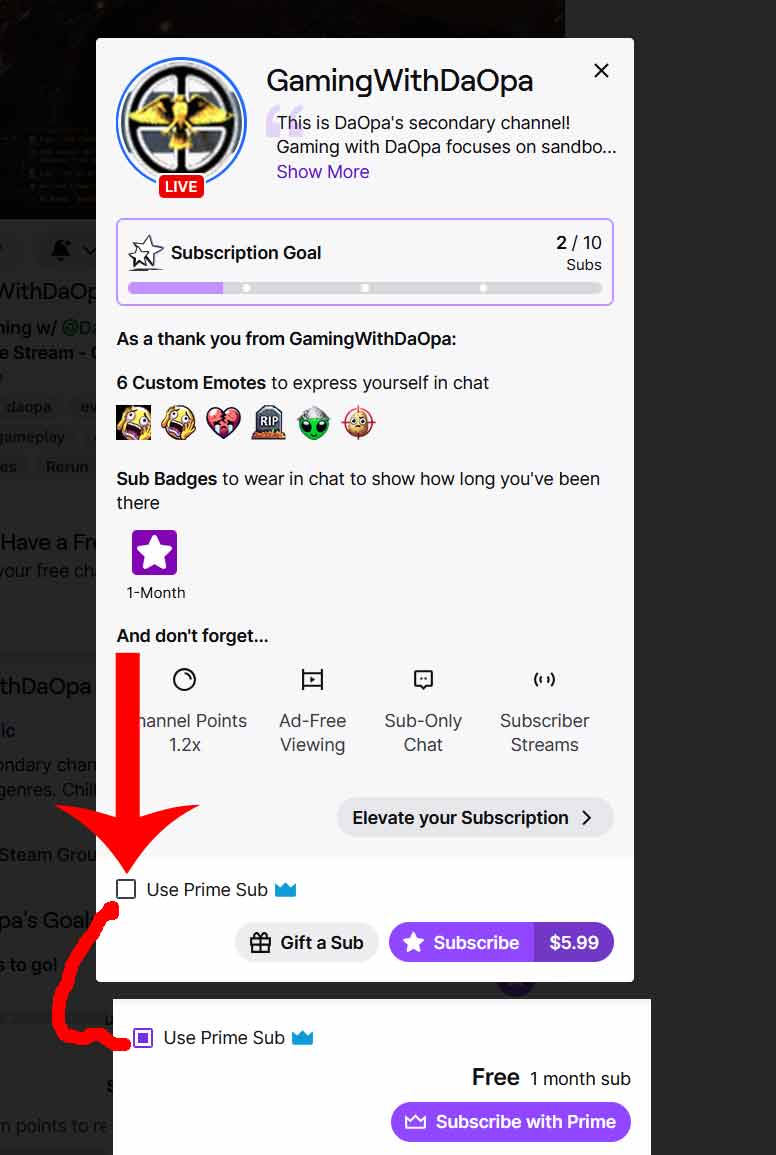
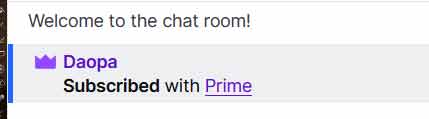
Chat shows success with Prime crown icon. Resub or switch channels next month.
Why Your Prime Sub Packs Value Each Month
Estimated worth of perks you unlock monthly (based on standard Tier 1 sub and extras).
Troubleshooting Common Issues
- No Prime sub option visible?
Refresh channel, use desktop browser, re-check link at twitch.tv/prime, try incognito, or confirm channel eligibility.
- Linking fails or errors?
Ensure same browser session. Revoke access via amazon.com/ap/adam (Manage apps) and reconnect if needed.
- Mobile quirks?
Linking and claiming work best on desktop. Mobile supports viewing and some claiming but may vary.
Quick Reader Poll
Did linking Prime to Twitch work smoothly for you?
Quick Poll: Your Take
Did linking Amazon Prime to Twitch work smoothly for you? Yes or No
Final Recap and Pro Tips
Connect once via twitch.tv/prime, then claim your free sub monthly on favorite channels. Enjoy emotes, badges, ad-free perks, and explore more at gaming.amazon.com for games and loot. Use consistent browser logins. Support creators effortlessly and level up your streaming experience! 🚀